Showing posts with label Geek Stuff. Show all posts

Monday, 27 July 2015

Refreshing Your Win 8 with CMD - Advanced version

If the above instructions didn't work and you receive the error message: "some files are missing. Your Windows installation or recovery media will provide these files" shown above, you'll need to do some geeky stuff. This is a common error if you updated Windows 8 to 8.1 via the Windows Store. Microsoft didn't include the proper image file to do a PC Refresh and the ability to do a PC Refresh or PC Reset is no longer there.
Microsoft advises that you need the ISO file of Windows 8.1, but that wasn't made available right away, and a lot of people aren't able to use their original Windows 8 key to download it. The good thing is, you can create the proper image file, but it takes some time and patience.
Before you start, make sure your computer has at least 16 GB of free space available on the hard drive. Then you'll need to run the command prompt as administrator. This is essential, otherwise creating the image won't work.
Right-click on the Windows button from the desktop and select Command Prompt (Admin) from the menu. Alternately you can search for cmd in the Modern environment, then under the results right-click Command Prompt and select to run as administrator.
Then type in the following commands in succession:
mkdir C:\RefreshImage and hit Enter.
recimg -CreateImage C:\RefreshImage and hit Enter.
When you're done, the command prompt should look like the screen shot below. Windows first creates a snapshot of the recovery image and, after it's created, Windows starts writing the recovery image.
It can take several hours for Windows to write the recovery image depending on your computer's hardware. When everything is complete, the command prompt will look like the shot below.
To verify the image creation was successful, navigate to the directory you created, C:\Refreshimage and you'll see the image file stored there.
Now you can go back and run PC Refresh or PC Reset as shown in the steps above and everything should work just fine.

Summing up

If your computer came with Windows 8.1 or 8.1 update 1 pre-installed, the first method shown above should work exactly as described. There are some other ways you can get the Windows 8.1 ISO, but that requires some goofy work arounds and those steps are even more convoluted and time consuming. Plus, you would need to make an installation disc or flash drive image from the ISO anyway. So, even though making the image file via the command line seems to be a hassle, it could be worse.
Of course, with anything tech, something could go wrong, so you'll definitely want to make sure you have a solid backup strategy. A good backup plan is to store your files tocloud services like OneDrive or Google Drive and have an on-site backup to an external drive, server, or NAS. It's also a good idea to make sure everything is being backed up to an off-site location

Please Leave your Queries and Suggestions in Comment Section , Thank You

Refreshing your Win 8- Basic Version

To refresh your Windows 8.x system, go to Settings > Update and Recovery > Recovery. Then under "Refresh your PC without affecting your files," click the Get started button. Or if you do want to do a PC Reset, click the Get Started button under "Remove everything and reinstall Windows." We'll take the first option.
Next you should see the following message letting you know what will happen during the PC Refresh.
Now wait while your computer restarts a couple of times and the PC Refresh completes. You'll see a series of different screens, like the one below, where Windows lets you know where it's at in the refresh process. In my experience, it usually takes about 30 minutes, but the time will vary between systems.

Saturday, 25 July 2015

Difference Between Refresh and Reset in Win 8 - All you need to Know

Windows 8 includes ”Refresh your PC” and “Reset your PC” features that attempt to make installing Windows easier. Both of these options actually perform a Windows reinstall in the background, quickly installing a fresh Windows system from the recovery files on your computer’s drive, a Windows installation disc or USB drive.
The Refresh your PC feature saves your personal files and Windows Store apps, but it removes all your installed desktop programs. You’ll have to install all your desktop programs again, but that’s the point: You get a fresh Windows desktop system with all your system files in a known-good state.
windows 8 refresh pc
Refreshing your PC will delete all of your programs and system files, but leave your personal files intact.
The Reset your PC feature wipes everything, including your personal files. It can evenwipe your system drive so no one can recover those personal files later. This is the easiest way to remove your stuff from a PC before getting rid of it.
windows 8 reset pc
Resetting your PC is a lot like the old nuclear option of wiping the entire hard drive and starting anew. Your personal files and all of Windows’ system files will be deleted before Windows is reinstalled.
Both of these options are available in the modern PC settings app under Update and recovery > Recovery. If your computer isn’t booting properly, it will boot to the advanced startup options menu, where you can select Troubleshoot to refresh or reset your PC. You can also access these options by booting from a Windows recovery drive.


Please Leave comment for Suggestions and Queries 
windows 8 refresh and reset
In Windows 8, you can refresh or reset your Windows installation from the Troubleshoot menu.

How to Factory reset Win 8 - Basic version

n the previous page we showed you how to refresh Windows 8. If that doesn't give you the performance you wanted, you might need to use the altogether more serious Reset function.
1.    Hit the Win-C combination (Windows key and C together), or use your mouse to make the Charms Bar to appear. Then click Settings > Change PC Settings > General.
2.    Scroll down till you see ‘Remove everything and reinstall Windows’
Windows 8 Reset 2


3.    Select Get Started. Like before you should see a similar options screen as follows:
Windows 8 Reset 3


4.    Click Next and this time you will be greeted with two options:
  • Just remove my files- Everything is gone and Windows 8 is as good as new.
  • Clean the drive fully – This wipes the drive and reinstalls Windows 8.
Windows 8 Reset 3


5.    Last chance saloon, the point of no return, your certain you want to do this?
Windows 8 Reset 5


6.    Click Reset and the PC will be returned to default settings. It should be good as new, 'til you wreck it again, that is. The process will take several minutes.
Windows 8 Reset 6
So there you have it, you can now ‘Refresh & Reset’ Windows 8 as and when you need to. I’ve said it before but I’ll say it again: make sure you select the right option. These options are nice, quick alternatives to scrabbling around in draws trying to find installation disks and access keys.

Please Leave a comment for suggestions and queries .

Wednesday, 22 July 2015

How to Copy files larger 4Gb to a pendrive of type FAT32

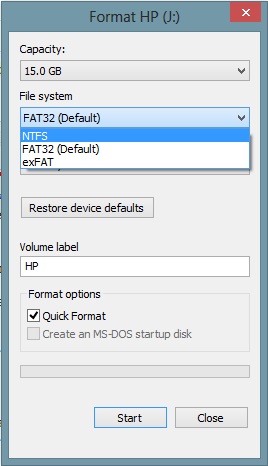
To transfer/copy files larger , all you need to do is to change the file system of pen drive from FAT32 to either NTFS or exFAT. To do that, follow these steps:
Note: All data on the pen drive partition will be lost permanently. Don’t forget to backup valuable data before continuing.
  1. Plug in the pen drive to your PC.
  2. Copy any important data out of  the pen drive to a place from where you can access it later on.
  3. Open Computer/My Computer (or whatever your PC is named) and right click on your pen drive’s name.
  4. Select Format.
  5. Now in the file system drop down menu, change the format from FAT32 to either NTFS or exFAT.
    We’ll recommend exFAT over NTFS, but that might make the drive incompatible with some older systems.
    format removable drive
  6. Check on Quick Format.
  7. Finally click on Start.
  8. Your drive will be formatted and you can now copy files of any size (only up to the total capacity of your pen drive, of course) to your pen drive.

Tuesday, 21 July 2015

Difference Between C and Java

Hello Friends , 

We will discuss  today the difference between C and Java programming languages , These are some points which may be helpful for coders which are still deciding a language to take as a career option 

Here are some detailed differences in detailed form for a helpful and broad approach .


No preprocessor
Java does not include a preprocessor and does not define any analogs of the #define, #include, and #ifdef directives. Constant definitions are replaced with staticfinal fields in Java. (See the java.lang.Math.PI field for an example.) Macro definitions are not available in Java, but advanced compiler technology and inlining has made them less useful. Java does not require an #include directive because Java has no header files. Java class files contain both the class API and the class implementation, and the compiler reads API information from class files as necessary. Java lacks any form of conditional compilation, but its cross-platform portability means that this feature is very rarely needed.
No global variables
Java defines a very clean namespace. Packages contain classes, classes contain fields and methods, and methods contain local variables. But there are no global variables in Java, and, thus, there is no possibility of namespace collisions among those variables.
Well-defined primitive type sizes
All the primitive types in Java have well-defined sizes. In C, the size of short, int, and long types is platform-dependent, which hampers portability.
No pointers
Java classes and arrays are reference types, and references to objects and arrays are akin to pointers in C. Unlike C pointers, however, references in Java are entirely opaque. There is no way to convert a reference to a primitive type, and a reference cannot be incremented or decremented. There is no address-of operator like &, dereference operator like * or −>, or sizeof operator. Pointers are a notorious source of bugs. Eliminating them simplifies the language and makes Java programs more robust and secure.
Garbage collection
The Java Virtual Machine performs garbage collection so that Java programmers do not have to explicitly manage the memory used by all objects and arrays. This feature eliminates another entire category of common bugs and all but eliminates memory leaks from Java programs.
No goto statement
Java doesn't support a goto statement. Use of goto except in certain well-defined circumstances is regarded as poor programming practice. Java adds exception handling and labeled break and continue statements to the flow-control statements offered by C. These are a good substitute for goto.
Variable declarations anywhere
C requires local variable declarations to be made at the beginning of a method or block, while Java allows them anywhere in a method or block. Many programmers prefer to keep all their variable declarations grouped together at the top of a method, however.
Forward references
The Java compiler is smarter than the C compiler, in that it allows methods to be invoked before they are defined. This eliminates the need to declare functions in a header file before defining them in a program file, as is done in C.
Method overloading
Java programs can define multiple methods with the same name, as long as the methods have different parameter lists.
No struct and union types
Java doesn't support C struct and union types. A Java class can be thought of as an enhanced struct, however.
No enumerated types
Java doesn't support the enum keyword used in C to define types that consist of fixed sets of named values. This is surprising for a strongly typed language like Java, but there are ways to simulate this feature with object constants.
No bitfields
Java doesn't support the (infrequently used) ability of C to specify the number of individual bits occupied by fields of a struct.
No typedef
Java doesn't support the typedef keyword used in C to define aliases for type names. Java's lack of pointers makes its type-naming scheme simpler and more consistent than C's, however, so many of the common uses of typedef are not really necessary in Java.
No method pointers
C allows you to store the address of a function in a variable and pass this function pointer to other functions. You cannot do this with Java methods, but you can often achieve similar results by passing an object that implements a particular interface. Also, a Java method can be represented and invoked through a java.lang.reflect.Method object.
No variable-length argument lists
Java doesn't allow you to define methods such as C's printf() that take a variable number of arguments. Method overloading allows you to simulate C varargs functions for simple cases, but there's no general replacement for this feature.
For any queries and suggestions , Please Comment 

Ritesh Srivastava . 


Common Errors while Coding

Hello Friends ,

Here we'll discuss about some common errors we face during programming


Missing semicolons
Every statement must end with a semicolon. A missing semicolon may cause considerable confusion to the compiler and result in misleading error messages. Consider the following statements.


a = x+y
b = m/n;


The compiler will treat the second line as a part of the first one and treat b as a variable name.

Misuse of Semicolon
Another common mistake is to put a semicolon in a wrong place. Consider the following code:


for(i =1; i<=10; i++);
               sum = sum + i;


The code is supposed to sum all the integers from 1 to 10. But what actually happens is that only the last value of i is added to the sum.

Missing Braces
It is common to forget a closing brace when coding a deeply nested loop. The number of opening braces should match with the closing ones. However, if we put a matching brace in a wrong place, the compiler won’t notice the mistake and the program will produce unexpected result.
Consider following example:


for(i=1;1<=10;i++)
               sum1=sum1+i;
               sum2=sum2+i*i;
printf("%d%d\n",sum1,sum2);


In this code the for loop treat only the first statement sum1=sum1+i; as its body and therefore the statement sum2=sum2+i*i; is evaluated only once when the loop is exited. The correct code is:


for(i=1;1<=10;i++)
{
               sum1=sum1+i;
               sum2=sum2+i*i;
}
printf("%d%d\n",sum1,sum2);

Missing Quotes
Every string must be enclosed in double quotes, while a single character constant in single quotes. If we miss them out, the string or the character will be interpreted as a variable name. For Example:


if(response==YES)             //correct code is if(response=="YES")
Grade=A;                            //correct code is Grade='A'

Improper Comment Characters
Every comment should start with /* and end with */. Anything between them is ignored by the compiler. If we miss out the closing */, then the compiler searches for a closing */ further down in the program, treating all the lines as comments. In case, it fails to find to find a closing */, we may get an error message. Consider following lines:


. . . . . . . .
/* comment line 1
Statement1;
Statement2;
/* comment line 2 */
Statement 3;
. . . . . . . .

Undeclared Variables
Every variable must be declared for its type, before it is used. During the development of a large program, it is quite possible to use a variable to hold intermediate results and to forget to declare it.


Forgetting the Precedence of Operators
Expressions are evaluated according to the precedence of operators. It is common among beginners to forget this. Consider the statement:


if(value = product() >= 100)
               tax=0.05*value;


The call product() returns the product of two numbers, which is compared to 100. If it is equal to or greater than 100, the relational test is true and 1 is assigned to value, otherwise 0 is assigned. In either case, the only values value can take is 1 or 0. This is not we actually want.


The statement was actually expected to assign the value returned by product() to value and then compare value with 100. If value was equal to or greater than 100, tax is computed.


The error is due to the higher precedence of the relational operator compared to the assignment operator. We can force the assignment to occur first by using parentheses as follows:


if((value = product()) >= 100)
               tax=0.05*value;

Mismatching of Actual and Formal Parameter Type in Function Calls
When a function with parameters is called, we should ensure that the type of values passed, match with the type expected by the called function. Otherwise, erroneous results may occur. If necessary, we may use the type cast to change the type locally.


Example: y = cos((double) x);

Missing & operator in scanf Parameters
All non-pointer variables in a scanf call should be preceded by an & operator. If the variable code an integer, then the statement scanf("%d", code); is wrong . The correct one is scanf("%d", &code); Remember that the compiler will not detect the error and you may get a crazy output.

Crossing the Bounds of an Array
Array indices start from 0. A common mistake is to start the index from 1. For example:


int x[10],sum,i;
for(i=1;1<=10;i++)
               sum=sum+x[i];

The above code will not find the correct sum of the elements of array x. The for loop expression should be corrected as follows:


for(i=0;1<10 i="" span="">

Forgetting a Space for Null character in as String
All character arrays are terminated with a null character and therefore their size should be declared to hold one character more than the actual string size.


Using Uninitialized Pointers
An uninitialized pointer points to garbage. The following program is wrong:


main()
{              int a,*ptr;
               a=25;
               *ptr=a+5;
}


The pointer ptr has not been initialized.

Missing Indirection and Address Operators
Another common error is to forget to use the operators * and & in certain places. Consider the following program:


main()
{              int m,*p1;
               m=25;
               p1=m;
               printf("%d\n",*p1);
}


This will print some unknown value because the pointer assignment p1=m; is wrong. It should be p1=&m;

Consider the following expression: y=p1+10;


Perhaps, y was expected to be assigned the value at location p1 plus 10. But it does not happen. y will contain some unknown address value. The above expression should be rewritten as: y=*p1+10;

Missing Parentheses in Pointer Expressions
The following two statements are not the same:


X=*p1+1;
X=*(p1+1);

The first statement would assign the value at location p1 plus 1 to x, while the second would assign the value at location p1+1.

Omitting Parentheses around Arguments in Macro Definitions
This would cause incorrect evaluation of expression when the macro definition is substituted.


Example:                            #define f(x) x*x+1
The call:                              y=f(a+b);
Will be evaluated as:       y=a+b * a+b+1;

Some other mistakes that we commonly make are:
·      Wrong indexing and termination of loops.
·      Unending loops (infinite loops).
·      Use of incorrect relational test.
·      Failure to consider all possible conditions of a variable.
·      Trying to divide by zero.
·      Mismatching of data specification and variables in scanf and printf statements.